

🔥 Black Friday: 30% off every plan & period! Grab it →

Events Report

Monitoring Events Reports

Stop scanning reports for problems. Let the rules find them and tell you.

Automatic events for schedule violations, risky websites, long messenger sessions and fake activity — with an employee ranking, the biggest changes and a full, searchable log.

No credit card required · Windows, macOS, Linux

  • 5,000+ organizations
  • 60+ countries
  • 6 interface languages
KeepActive · Events report
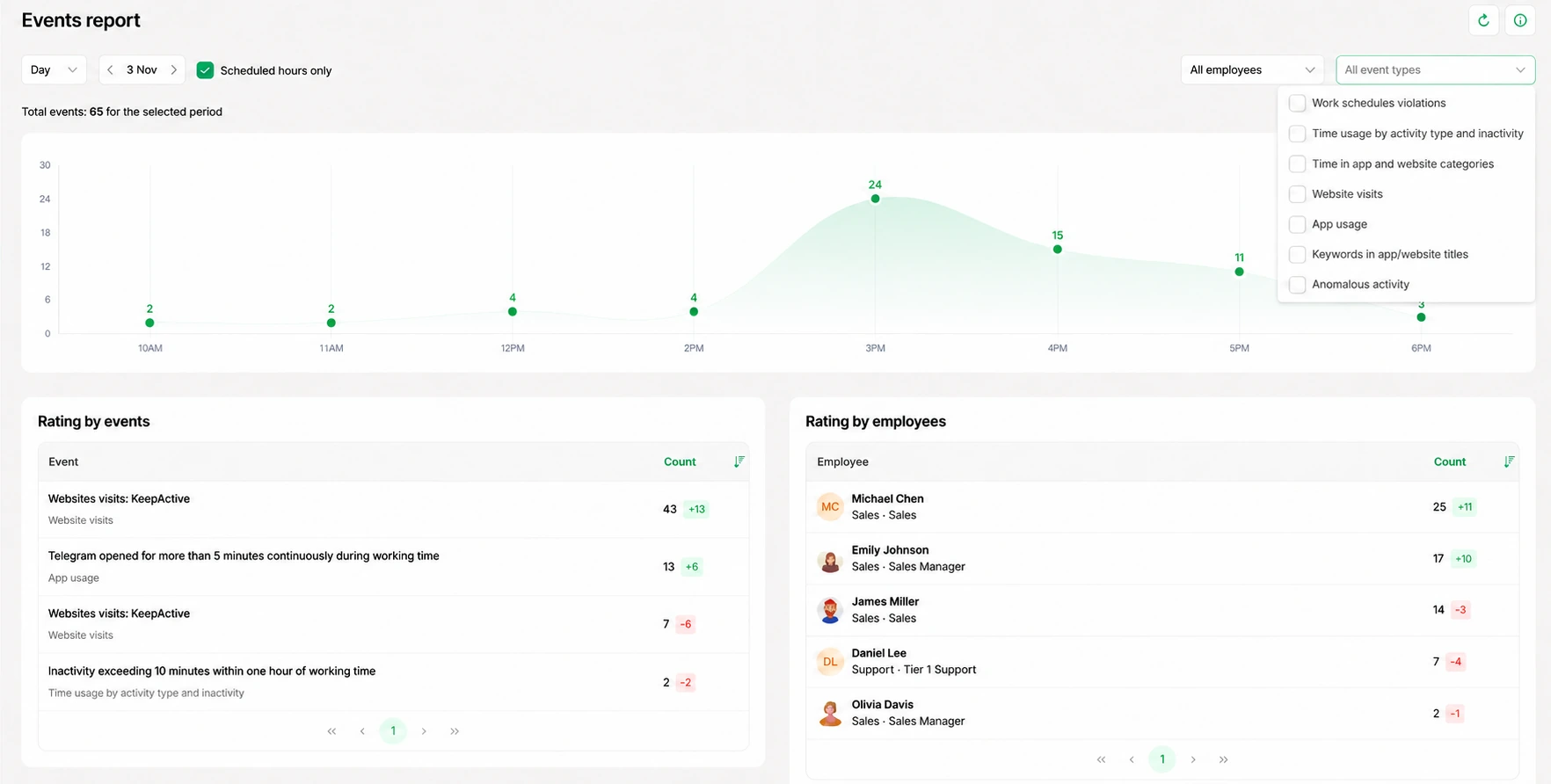
KeepActive events report: events chart by hour, event type filter, rating by events and employee ranking.
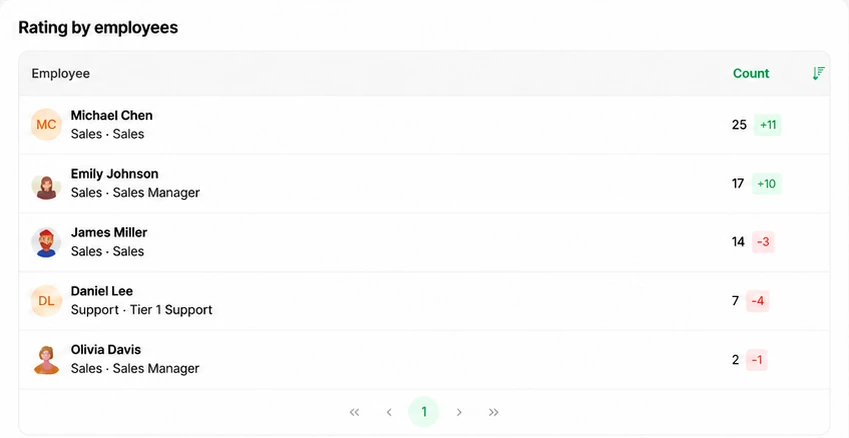
Employee ranking: Michael Chen 25 events (+11), Emily Johnson 17 (+10).
Employee ranking by events
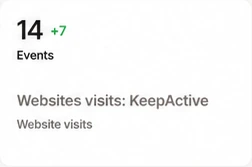
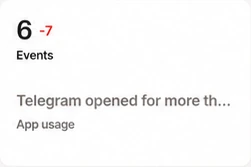
6 events, -7: Telegram opened for more than 5 minutes, App usage.
Biggest changes

What it is

What are employee monitoring events reports?

Employee monitoring events reports collect every event that your monitoring rules trigger — late starts, visits to specific websites, too much time in a messenger, keywords in window titles, signs of fake activity — and show them in one place. In KeepActive, the Events report charts events over time, ranks events and employees by how often they were triggered, highlights the biggest changes and keeps a searchable, exportable log.

Most monitoring data waits for someone to look at it. Events work the other way round: you describe what matters once — "Telegram open for more than 5 minutes during working time", "visits to job-search sites", "inactivity over 10 minutes within an hour" — and KeepActive records it automatically, alerts managers by email and builds the report for you.

The result is an automatic employee activity report focused on exceptions, plus an employee ranking that shows at a glance who triggers the most events and whether things are getting better or worse.

How it looks

How employee monitoring events look in KeepActive

Real screens from KeepActive — from the chart and rankings down to every triggered event.

KeepActive · Events report
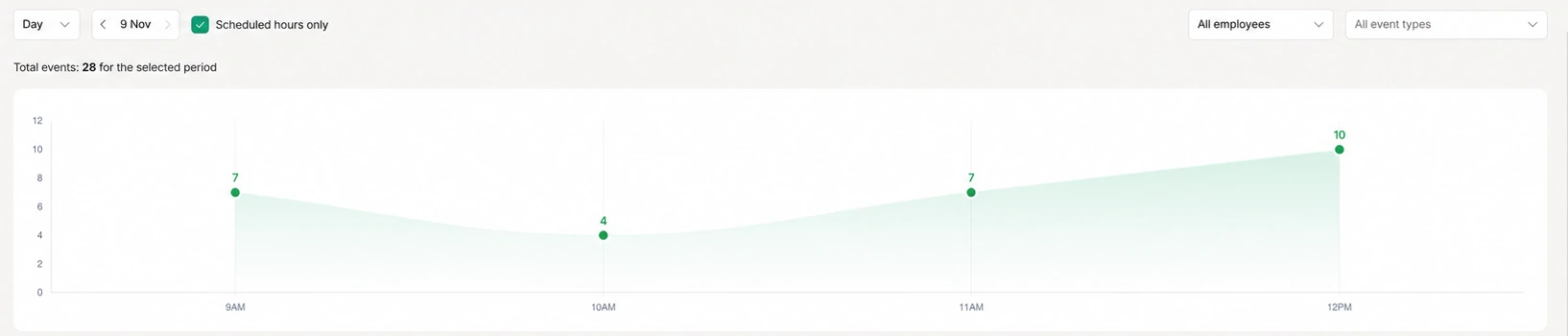
Events chart: number of events per hour with filters for period, date, scheduled hours, employees and event types.
Total events: 28 for the selected period.
Total for the period

Events chart

See how many events were triggered and when. Pick a day or a longer period, filter by employees and event types and limit the view to scheduled hours. Hover any point for details.

  • Total events for the selected period
  • Peaks by hour or by day
  • Report builds automatically
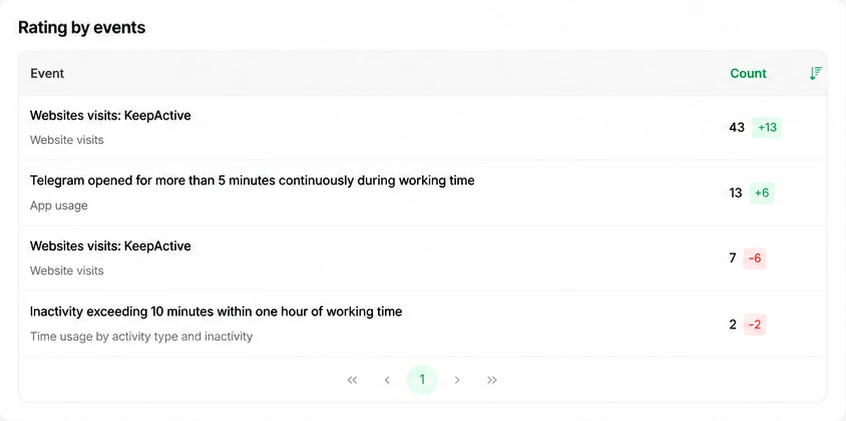
Rating by events: Websites visits 43 (+13), Telegram opened for more than 5 minutes 13 (+6), inactivity exceeding 10 minutes 2 (-2).
Rating by employees: event counts per employee with change vs previous period.
Change vs previous period on every line

Rating by events and employee ranking

Two rankings side by side: which rules fire most often and which employees trigger the most events. Both are sorted by count by default and show the change from the previous period.

  • Top event rules by count
  • Employee ranking by events
  • Sort either list in one click
KeepActive · Pay attention
Pay attention: events with the largest changes vs the previous period.
Largest +/− vs previous period

Pay attention

The events whose counts changed the most compared with the previous period. A spike in visits to a blocked site, or a drop after a new policy, is visible without reading every row.

  • Largest increases and decreases
  • Event name and type on each card
  • Green and red deltas
KeepActive · All events
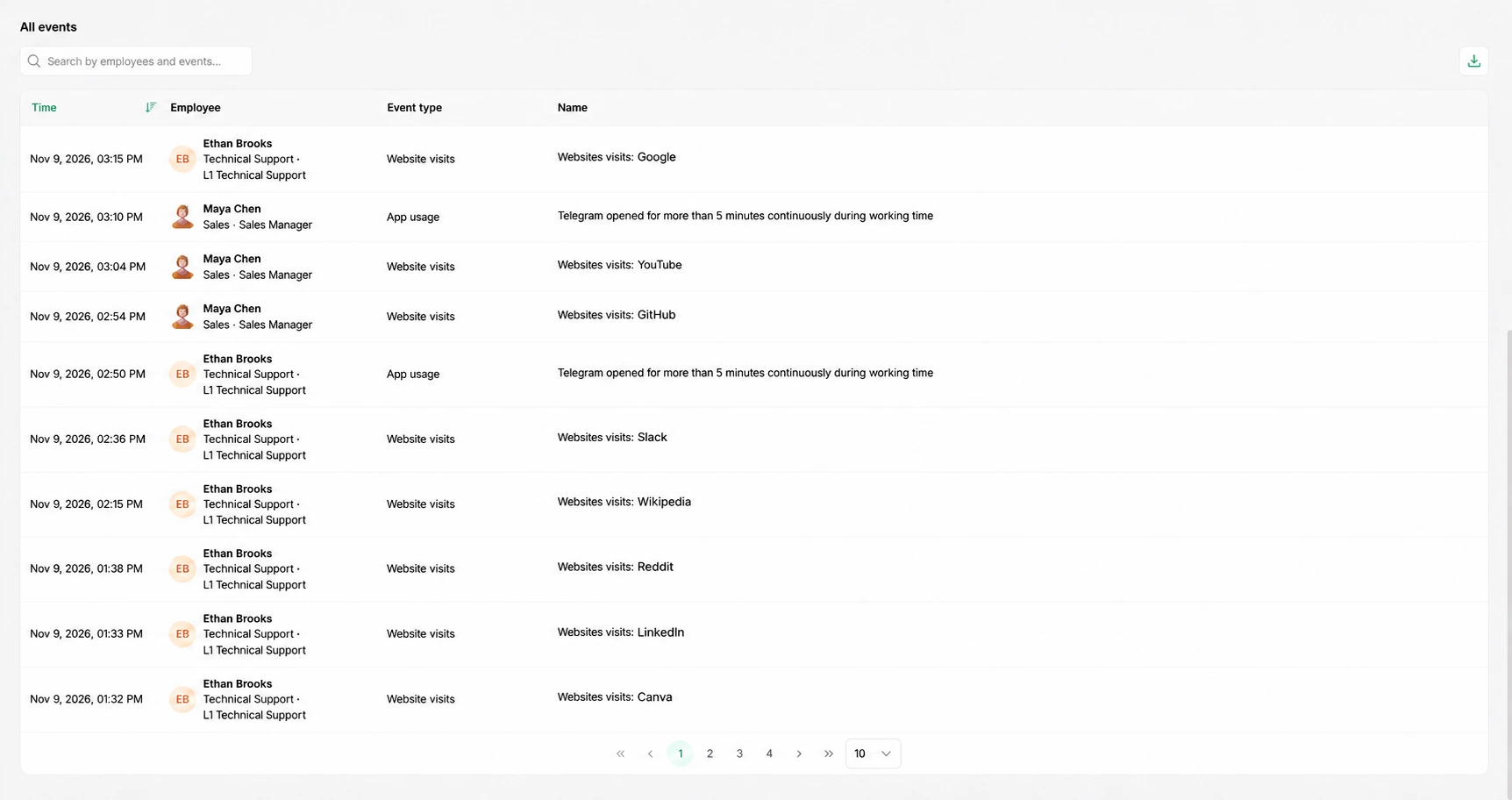
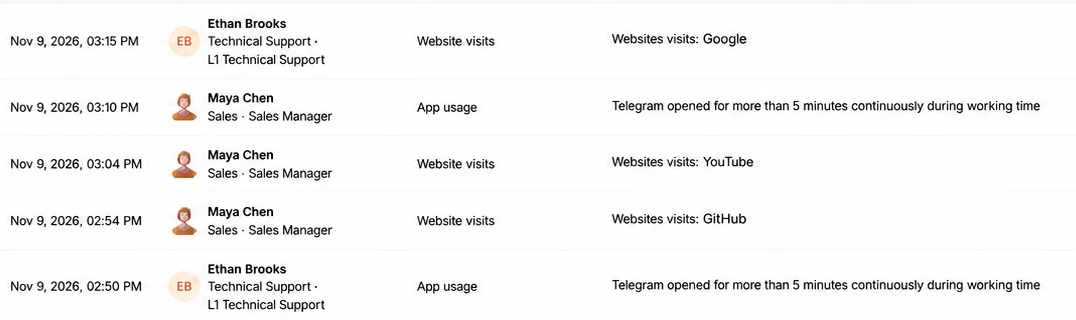
All events: time, employee, event type and name — website visits to Google, YouTube, GitHub, Slack and Telegram sessions.
Search by employees and events.
Search by employee or event

All events log

Every triggered event with time, employee, event type and name. Search by employee, type or name, sort by any column and export the list for HR, security or legal.

  • Exact time of every event
  • Search and sort
  • Export in one click
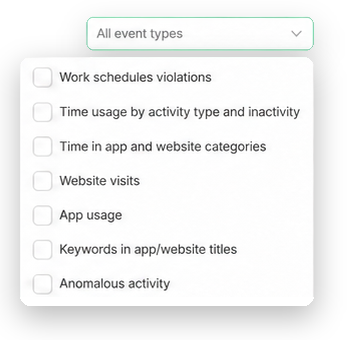
Event types: work schedule violations, time usage by activity type and inactivity, time in app and website categories, website visits, app usage, keywords in app/website titles, anomalous activity.7 event types

Seven types of events

From schedule violations to anomalous activity: choose what should become an event, set the trigger and assign the rule to a department or individual employees. Filter the report by any type.

  • Schedules, activity types and categories
  • Websites, apps and title keywords
  • Anomalous activity detection

Business value

What tasks employee monitoring events solve

Managers don't have time to watch dashboards all day. Events turn monitoring into automatic signals — and the report shows whether the signals are growing or fading.

  1. React in minutes, not weeks

    Email alerts with a screenshot reach the manager while the issue is still happening.

  2. Enforce schedules automatically

    Lateness, early departures and absences become events — no manual attendance checks.

  3. Spot security risks early

    Visits to file-sharing or job-search sites and keywords in window titles raise a flag right away.

  4. Catch fake activity

    Anomalous activity events reveal mouse jigglers and other tricks that look like work in the statistics.

  5. Prove that policies work

    Compare event counts with the previous period to see whether a new rule really changed behaviour.

  6. Coach the right people

    The employee ranking shows whose habits need a conversation — and who has already improved.

Features

Events report features: automatic alerts and employee ranking

Everything you need to define what matters, get alerted and review the trend.

What the report shows

  • Events chart for the selected period
  • Total events and change vs previous period
  • Rating by events
  • Employee ranking by events
  • Biggest changes in Pay attention
  • Full log with time, employee, type and name
Events log rows: website visits to Google, YouTube and GitHub and Telegram open for more than 5 minutes.

Event rules

  • Seven event types
  • Instant, continuous or total-time triggers
  • Thresholds such as 15 minutes per hour
  • Assigned to departments or employees
  • Inherited or custom assignments
  • Role-based access to events

Alerts for managers and employees

Managers get an email with your text — and, for instant and continuous-time events, a screenshot from the moment the rule fired. Employees can see an on-screen reminder, so many issues fix themselves before anyone has to step in.

Who it's for

Who uses employee monitoring events reports

For anyone who needs to know about problems as they happen, not at the end of the month.

Use cases

Employee monitoring events in practice: two client cases

Two stories where the problem was hiding in plain sight — and the kind of event rule that brings it to the surface.

Client case No. 19 Remote employee · Activity faking

A wristwatch kept the mouse "busy" all day

  1. Situation

    A remote employee placed an optical mouse on a wristwatch. The moving second hand registered as constant mouse activity, so every minute was counted as active.

  2. What gave it away

    Non-stop activity with no breaks is a red flag. This is exactly the pattern the Anomalous activity event type is built to surface automatically.

Result: the trick was caught instead of being paid for at the end of the month.

Read the full case →
Client case Software development · 11 developers

Social media and communities cost a dev team 20% of its time

  1. Situation

    After cutting the team from 20+ to 11 developers, a software company saw productivity fall further than headcount alone explained.

  2. What the data showed

    Work was constantly broken up by social media, messengers and professional communities — about 20% of every specialist's day. Website visit and app usage events make this kind of drift visible every day.

Result: non-work sites and apps were limited to breaks, and productivity rose 12% in the first week.

Read the full case →

Getting started

Start getting employee monitoring events in three steps

Two components to install, about five minutes each. Events and alerts are processed on your own server and never leave your infrastructure.

  1. Server.

    Install the Server

    Evaluates event rules and stores events inside your network — on-premises or air-gapped.

  2. Employee laptop with the Grabber.

    Install the Grabber

    A lightweight agent that records activity and shows employee notifications. Windows, macOS and Linux.

Events & reports
Central Server web interface
Event rules & alerts
Events and Notifications

Customer reviews

What customers say about KeepActive

With KeepActive’s help managers get full access to their employees’ computer screens. Once we implemented the software, the productivity of our team skyrocketed.

It’s fairly simple to use. It certainly has all the features you might ever need.

Rodrigo via G2 5 stars.

During the time we’ve been using KeepActive, our employees have been procrastinating way less and, hence, the quality of their work has improved significantly.

FAQ

FAQ about employee monitoring events reports

What is an employee monitoring events report?

An employee monitoring events report shows every rule-based event that monitoring recorded for your employees — late starts, visits to specific websites, long sessions in a messenger, signs of fake activity and more. In KeepActive, the Events report charts events over time, ranks events and employees by how often they were triggered, highlights the biggest changes and lists every event in a searchable, exportable log.

What kinds of events can KeepActive track?

Seven event types: work schedule violations (lateness, early departure, absence), time usage by activity type and inactivity, time in app and website categories, website visits (by domain or exact URL), app usage, keywords in app or website titles, and anomalous activity — signs of unnatural activity such as mouse jigglers.

How are events triggered?

You create event rules and assign them to departments or employees. A rule can fire instantly when an employee opens a matching app or site, after a continuous amount of time (for example, a messenger open for more than 5 minutes), or when total time passes a threshold within a period (for example, more than 15 minutes of unproductive activity within one hour). Rules can be limited to scheduled hours only.

Is the events report generated automatically?

Yes. Events are recorded automatically as rules trigger, and the report builds itself as soon as you choose the period, employees and event types. There is nothing to compile by hand — just open it, or refresh it for the latest data.

How does the employee ranking work?

Rating by employees lists employees by how many events they triggered in the selected period, in descending order by default, with the change compared with the previous period. Rating by events does the same for the event rules themselves, so you see both who and what needs attention.

Can managers get alerts when an event is triggered?

Yes. Turn on manager notifications to send an email to the addresses you choose, with your own text. For instant and continuous-time events you can attach a screenshot taken at the moment the event fired. A mail server must be configured in settings.

Can employees be notified too?

Yes. Employees can see a notification on their computer when an event assigned to them is triggered — for example, a reminder that a messenger has been open too long. The notification text is customizable. Work schedule violation events cannot notify employees.

What does the Pay attention block show?

The events whose counts changed the most compared with the previous period — for example, a sudden jump in visits to a blocked site or a drop in late starts after a policy change.

Can I search and export the events log?

Yes. Search All events by employee, event type or event name, sort by any column and export the list for HR, security or legal review.

Who can see events?

Super admins and admins see all events. Managers see events only for employees within the visibility scope of their account.

Is it legal to track employee events and send alerts?

Rules depend on the country. Common good practice is to inform employees, document the purpose and the rules in a policy, monitor work computers only and limit access to authorized managers. See our legal opinion and GDPR notes.

How fast can I start, and is there a free trial?

Installation takes a few minutes per component. Start a free trial of up to 14 days with no credit card, create a rule and see the first events and alerts the same day.

Get your first employee monitoring events today

Set up in minutes, create a rule and see the first events and alerts the same day. Free trial, no credit card required.