


🔥 Black Friday: 30% off every plan & period! Grab it →

Online Screen Monitoring

Live Monitoring

Know who is working, who is idle and who is offline — right now, not at the end of the day.

Real-time employee monitoring for up to 25 people in one view: live status, the app in use and today's work-related activity, with an instant screenshot one click away.

No credit card required · Windows, macOS, Linux

  • 5,000+ organizations
  • 60+ countries
  • 6 interface languages
KeepActive · Live Monitoring
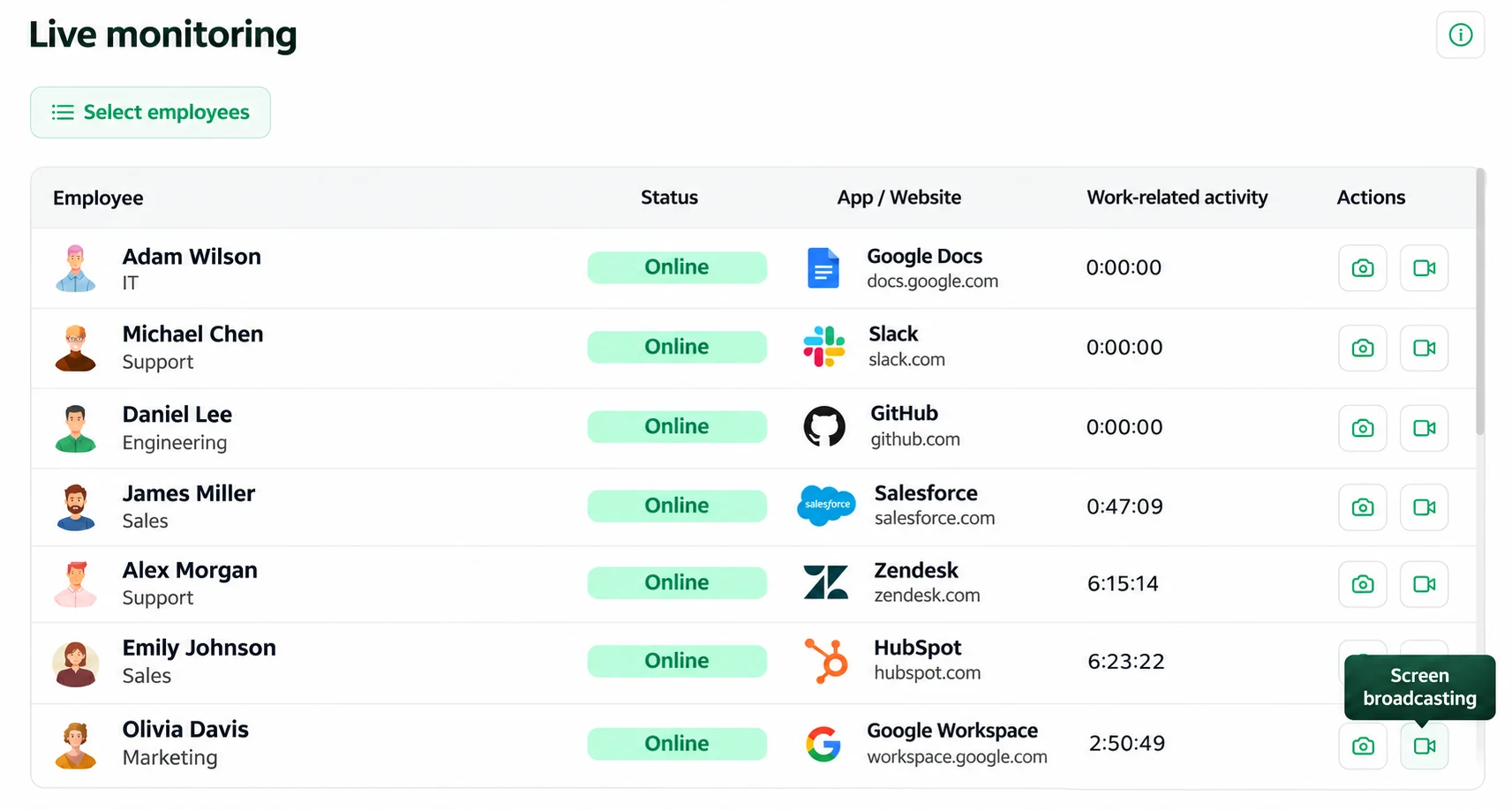
KeepActive live employee monitoring: employees with Online status, the app or website in use and work-related activity for today.
Employee row: Emily Johnson, Sales, Online, HubSpot, 6:23:22 of work-related activity.
Status, current app and today's activity
Instant screenshot and Screen broadcasting buttons.
Screenshot or live screen in one click

What it is

What is live employee monitoring?

Live employee monitoring shows managers what their team is doing right now. In KeepActive, the Live Monitoring view lists up to 25 employees with their status — Online, Idle or Offline — the app or website each person is using at this moment and their work-related activity for the day.

Reports tell you how yesterday went. Real-time employee monitoring tells you what is happening now, while you can still act on it: reach someone who has gone idle, check who is available for an urgent task or see whether the team is in the right tools.

It is the lightest form of PC live monitoring: one table, refreshed live, with no screens to watch unless you choose to. When you need more context, an instant screenshot or the employee's live screen is one click away.

How it looks

How real-time employee monitoring looks in KeepActive

Real screens from KeepActive — from a live status board to an employee's screen in two clicks.

KeepActive · Live Monitoring
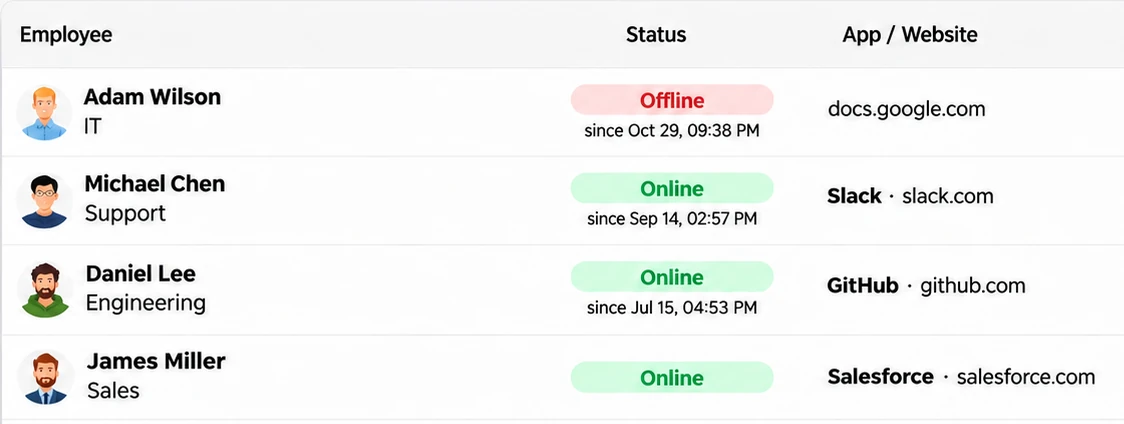
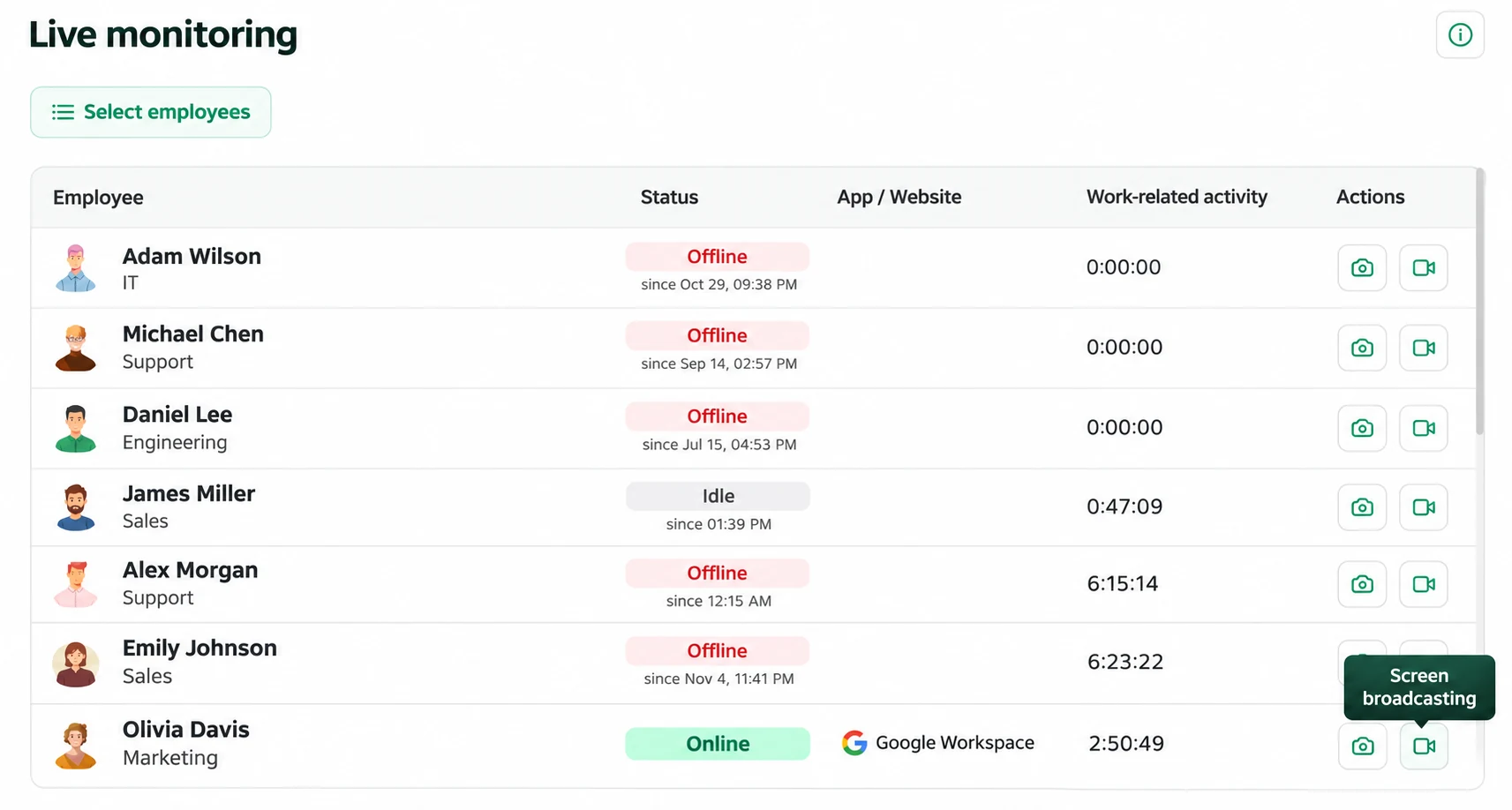
Live Monitoring with Offline, Idle and Online statuses and since-times.
James Miller, Sales: Idle since 01:39 PM.
Idle since 01:39 PM

Live status for everyone

Every employee in your view shows a live status — Online, Idle or Offline — so you can see at a glance who is at work, who has stepped away and who never logged on.

  • Idle and Offline show since when, for example "since 01:39 PM"
  • Idle follows the inactivity interval you configure
  • Office, remote and hybrid staff in one table
KeepActive · Live Monitoring
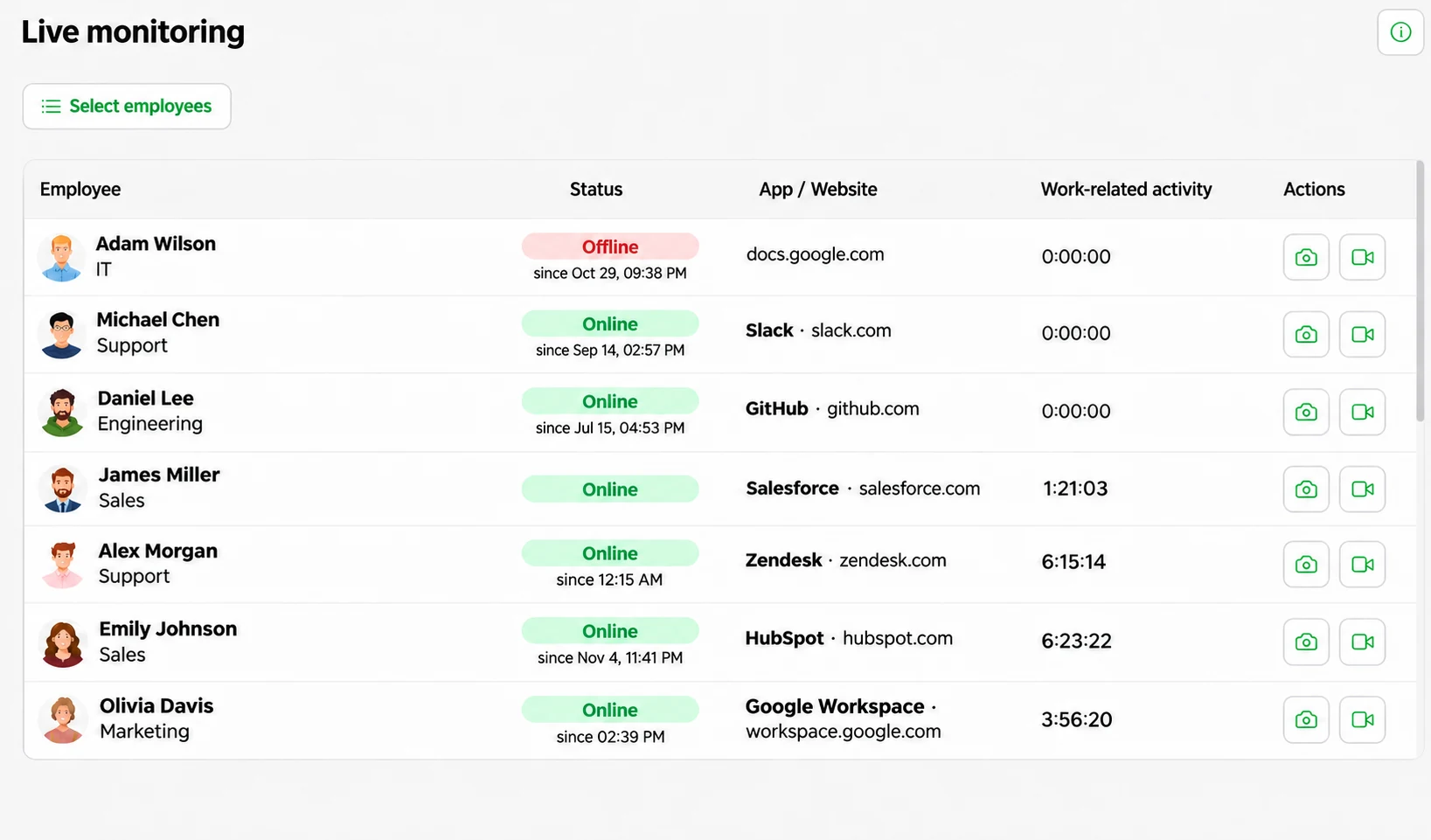
Live Monitoring table with the current app or website for each employee.
Emily Johnson on HubSpot with 6:23:22 of work-related activity.
HubSpot · 6:23:22 work-related today

What each person is doing

See the app or website each employee is using at this very moment, next to their work-related activity for the day — real-time employee tracking without opening a single report.

  • Current app or website, updated live
  • Work-related activity: productive, neutral and uncategorized time plus offline work
  • Spot who is in the wrong tool before the day is lost
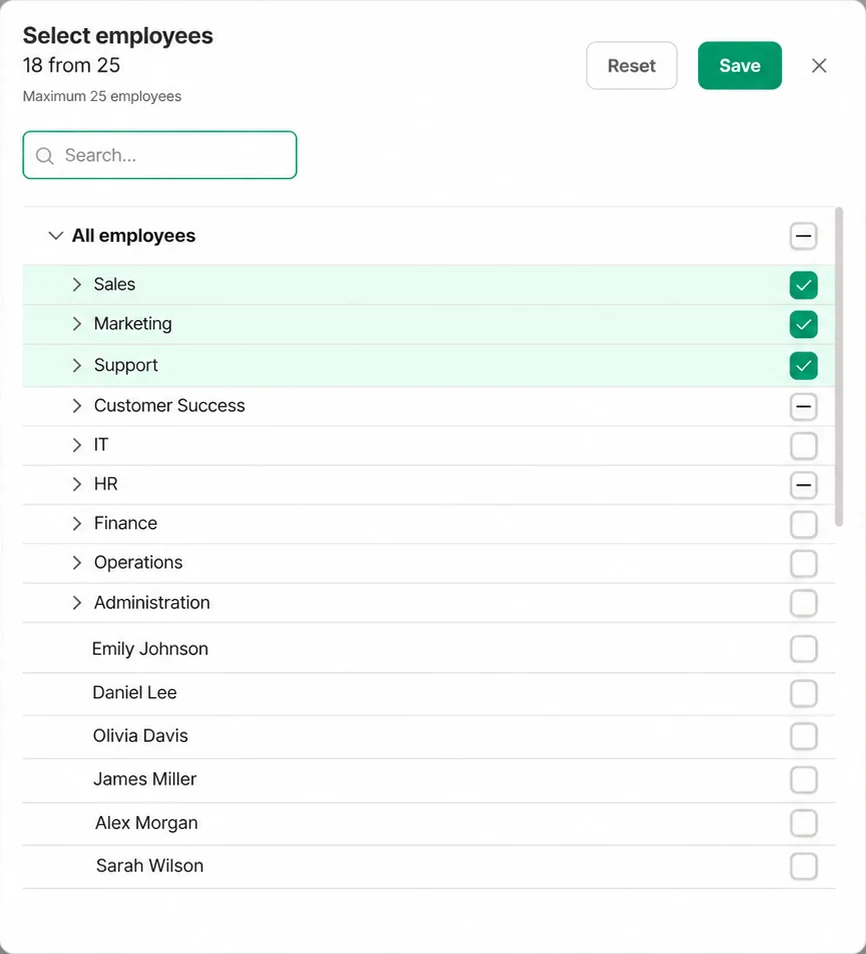
Select employees: 18 from 25, maximum 25 employees, departments with checkboxes.
18 from 25 selectedMaximum 25 per user

Choose who to follow

Click Select employees, tick whole departments or individual people and save. Each user builds their own live view of up to 25 employees.

  • Employees grouped by department
  • Search by name
  • Reset to the saved selection in one click
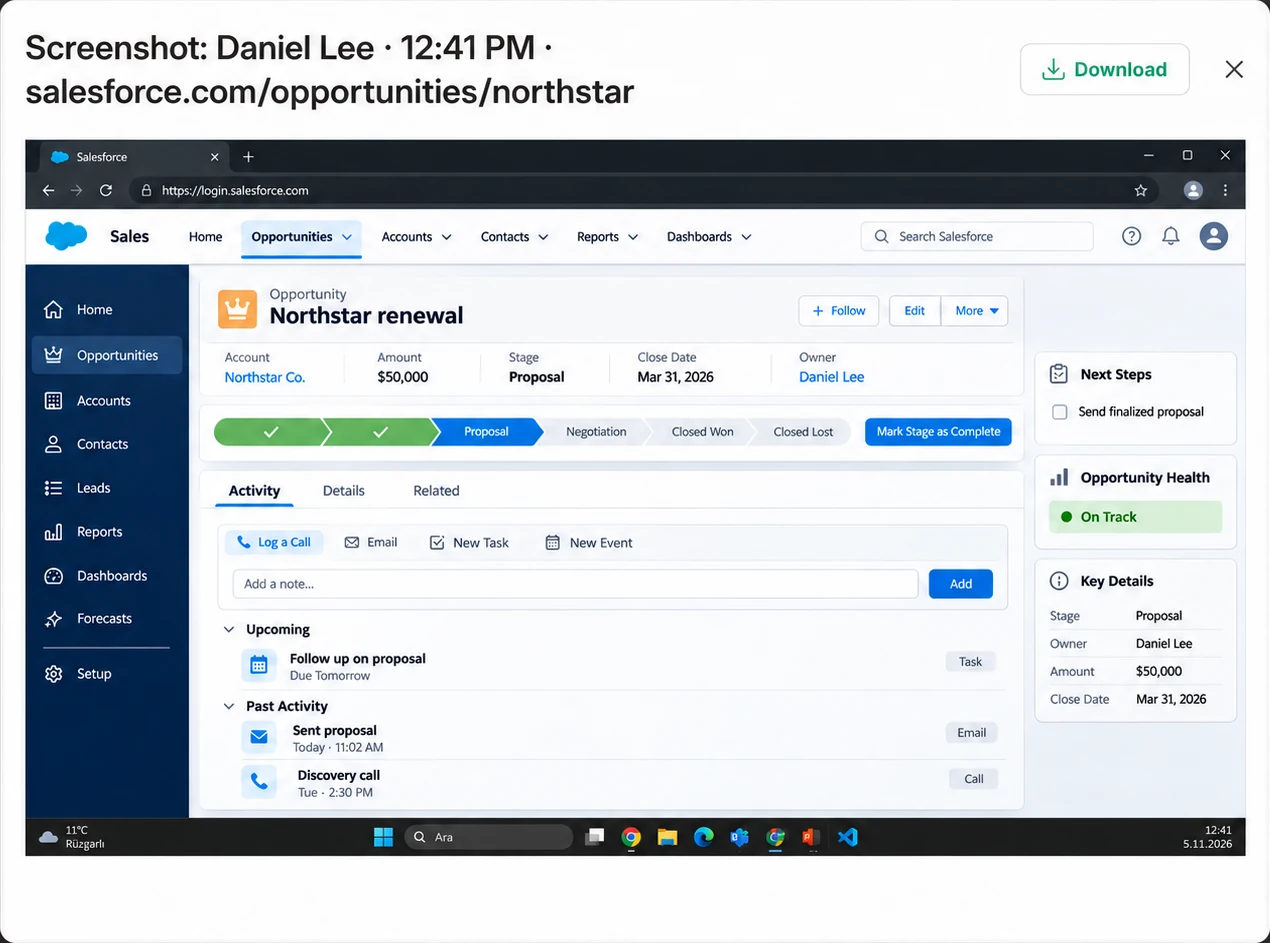
Instant screenshot of Daniel Lee at 12:41 PM on salesforce.com with a Download button.
 Online employees onlyDownload in one click

Instant screenshot

Need to see more than a status? Click the camera icon next to any online employee to capture their screen right now.

  • Employee, time and site in the window title
  • Download the screenshot if you need to keep it
  • Close without downloading and it is deleted for good
KeepActive · Screen broadcasting
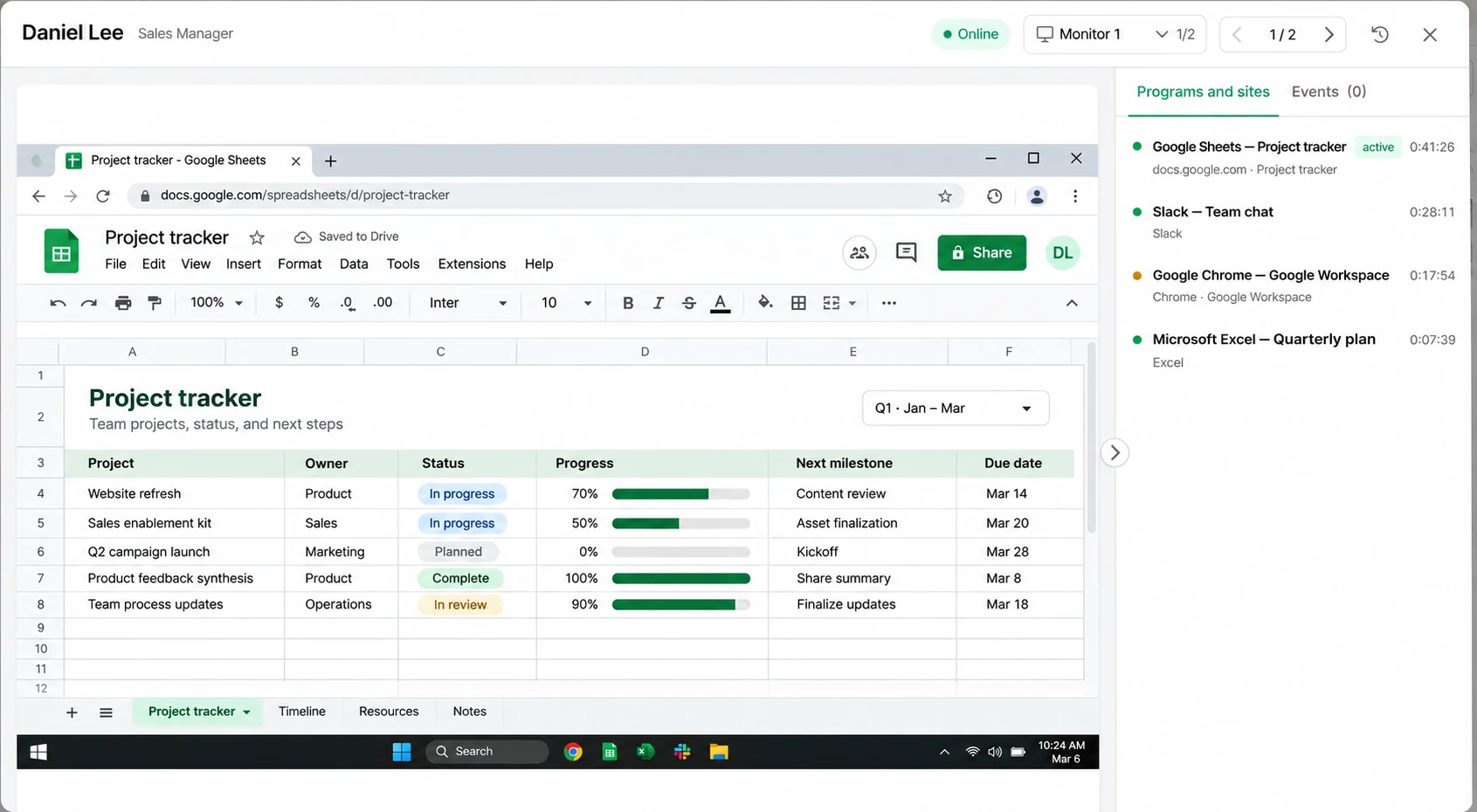
Live screen of an employee with programs and sites open and time in each.
Screen broadcasting button.
Opens from the table

Open the live screen

With the Employee Monitoring (EM) license, the video icon opens Screen broadcasting: the employee's live screen with every program and site open and time in each.

  • Live screen of any online employee
  • Monitor switcher for multi-monitor setups
  • Programs, sites and events side by side

Business value

What tasks real-time employee monitoring solves

Yesterday's report can't help today's customer. A live view shows who is available, who is stuck and who is gone — while it still matters.

  1. React while it still matters

    See an employee go idle or offline during work hours and follow up in minutes, not in next week's report.

  2. Assign work to who is free

    Know at a glance who is online and what they are working on before you hand out an urgent task.

  3. Keep queues and shifts covered

    Support, sales and back-office leads see their whole shift live and rebalance before customers notice.

  4. Spot faked activity early

    Constant activity with no breaks or the same app all day is a signal. Check it with an instant screenshot.

  5. Lead remote teams with clarity

    Live employee monitoring works the same in the office and at home — one view, one fair standard.

  6. Fewer status check-ins

    Stop pinging people to ask what they are doing. The live view answers it, so meetings can be about results.

Features

PC live monitoring features

One table that tells you how the team is doing right now — and takes you deeper when you need it.

What you see for each employee

  • Name, photo and department
  • Live status with "since" time
  • The app or website in use right now
  • Work-related activity for today
  • Instant screenshot button
  • Screen broadcasting button (EM)
Live Monitoring table: employee, status, app or website, work-related activity and actions.
Select employees button.

Your view, your team

  • Add up to 25 employees to your live view
  • Select whole departments or individual people
  • Search employees by name
  • Reset to your saved selection
  • Managers see only employees in their visibility scope
  • Instant screenshots: download or discard

Three statuses at a glance

Colour-coded statuses show who is working, who has stepped away and who is not connected — with the time each status began.

  • Online since 02:39 PM
  • Idle since 01:39 PM
  • Offline since Oct 29, 09:38 PM

Who it's for

Who uses live employee monitoring

For anyone who needs to know what the team is doing now — not just how the day went.

Use cases

Real-time employee tracking in practice: two client cases

What changed when managers could see what was happening — while it was happening.

Client case No. 19 Remote employee · Activity faking

A wristwatch kept the mouse "busy" all day

  1. Situation

    A remote employee placed an optical mouse on a wristwatch. The moving second hand registered as constant mouse activity, so the time tracker counted every minute as active.

  2. How live monitoring helped

    Non-stop activity with no breaks is a red flag in KeepActive. When it appears, a manager can check on the employee right there and then — and see the same untouched screen.

Result: the trick was caught in the act instead of being paid for at the end of the month.

Read the full case →
Client case No. 20 Tech support · USA & Europe

Calls hung for an hour — but hiring wasn't the answer

  1. Situation

    An IT company planned to expand its US first-line support: calls waited up to an hour, while the European team handled the same load with the same headcount.

  2. What monitoring revealed

    The first line was genuinely overloaded. But two second-line specialists looked busier than ever — and every fifth ticket they closed turned out to be fake.

Result: the company fixed the real bottleneck based on facts instead of hiring blindly.

Read the full case →

Getting started

Start live employee monitoring in three steps

Two components to install, about five minutes each. Live data stays on your own server and never leaves your infrastructure.

  1. Server.

    Install the Server

    Collects and stores monitoring data inside your network — on-premises or air-gapped.

  2. Employee laptop with the Grabber.

    Install the Grabber

    A lightweight agent on the computers you want to monitor in real time. Windows, macOS and Linux.

Live Monitoring & reports
Central Server web interface
Idle interval
Productivity settings

Customer reviews

What customers say about KeepActive

With KeepActive’s help managers get full access to their employees’ computer screens. Once we implemented the software, the productivity of our team skyrocketed.

It’s fairly simple to use. It certainly has all the features you might ever need.

Rodrigo via G2 5 stars.

During the time we’ve been using KeepActive, our employees have been procrastinating way less and, hence, the quality of their work has improved significantly.

FAQ

FAQ about live employee monitoring

What is live employee monitoring?

Live employee monitoring shows managers what their team is doing right now. In KeepActive, the Live Monitoring view lists up to 25 employees with their status (Online, Idle or Offline), the app or website each person is using at this moment and their work-related activity for the day.

How is real-time employee monitoring different from reports?

Reports show how the day went once it is over. Real-time employee monitoring shows what is happening now, so you can help someone who is stuck, rebalance work or check a situation while it still matters.

What do Online, Idle and Offline mean?

Online means the employee is active at the computer. Idle means there has been no keyboard or mouse activity for longer than the allowed idle interval, which you can configure. Offline means the computer is not sending data. Idle and Offline show since when the status applies.

What is work-related activity?

It is today's total time in apps and websites rated Productive, Neutral or Uncategorized, plus approved offline work such as meetings. It updates as the day goes on.

How many employees can I monitor at once?

Each user can add up to 25 employees to their Live Monitoring view, choosing them by department or one by one.

Can I take a screenshot of an employee's screen right now?

Yes. For any online employee, click the camera icon to capture an instant screenshot of their workstation and download it if you need it. Instant screenshots are available in plans with screenshot capture (TT and EM). If you close the window without downloading, the screenshot is permanently deleted.

Can I watch an employee's screen live?

Yes, with the Employee Monitoring (EM) license. The video icon next to each employee opens Screen broadcasting with their live screen, open programs and events.

Who can see live monitoring data?

Super admins and admins see all employees. Managers see only the employees within the visibility scope of their account.

Is PC live monitoring available for remote employees?

Yes. Office, remote and hybrid employees appear in the same view wherever they work, as long as the KeepActive Grabber is installed on their computer (Windows, macOS or Linux).

Is real-time employee tracking legal?

Rules depend on the country. Common good practice is to inform employees, document the purpose in a policy, monitor work computers only and limit access to authorized managers. See our legal opinion and GDPR notes.

How fast can I start, and is there a free trial?

Installation takes a few minutes per component. Start a free trial of up to 14 days with no credit card and see your team live the same day.

Try live employee monitoring on your own team

Set up in minutes and see your team in real time today. Free trial, no credit card required.