

🔥 Black Friday: 30% off every plan & period! Grab it →

Screenshots

Employee Monitoring Software with Screenshots

See what the workday really looked like — not just how long it lasted. Screenshots on your schedule, grouped by hour and colour-coded by productivity.

A time tracker with screenshots that turns hours into visual proof of work, for office, remote and hybrid teams.

No credit card required · Windows, macOS, Linux

  • 5,000+ organizations
  • 60+ countries
  • 6 interface languages
KeepActive · Screenshots
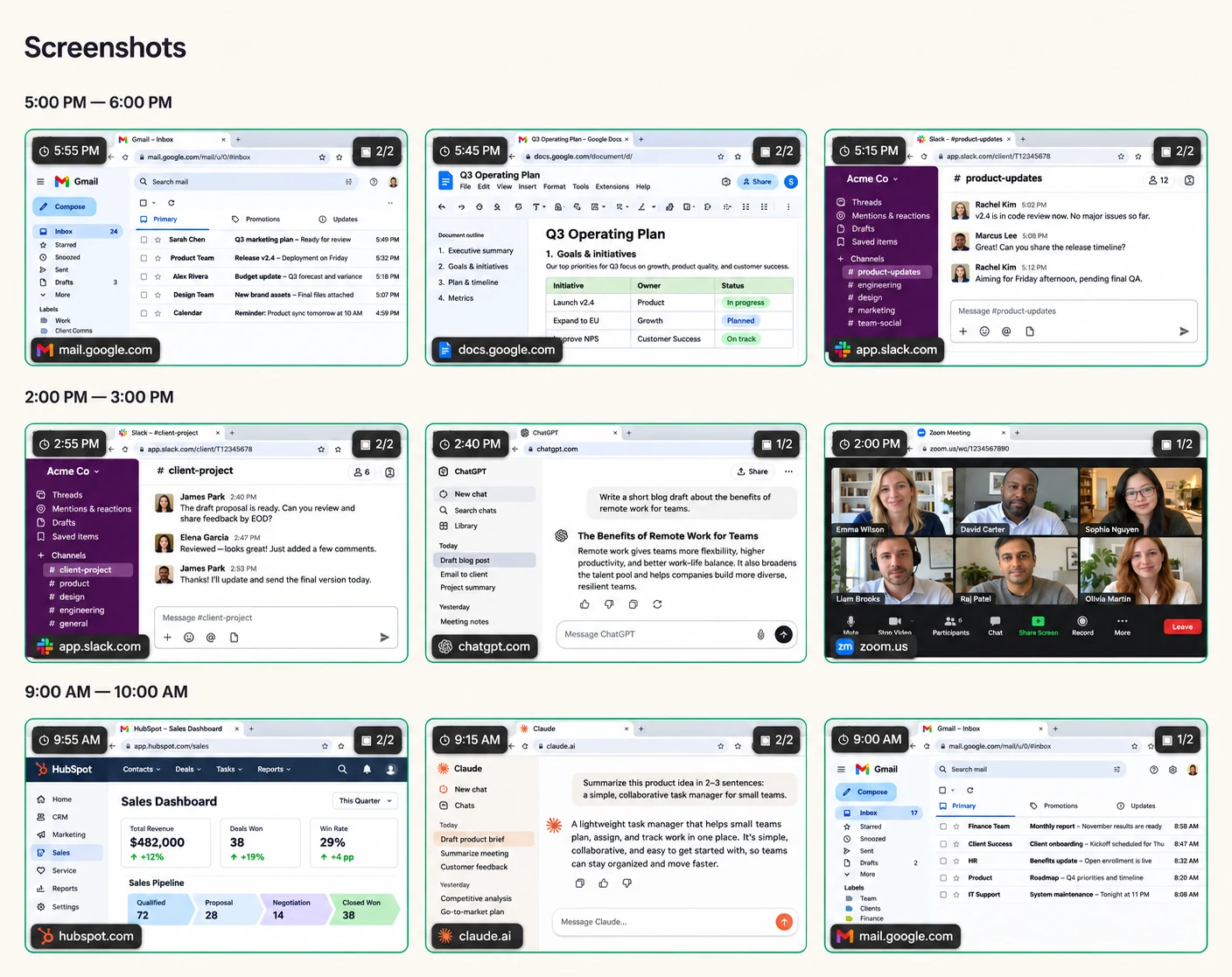
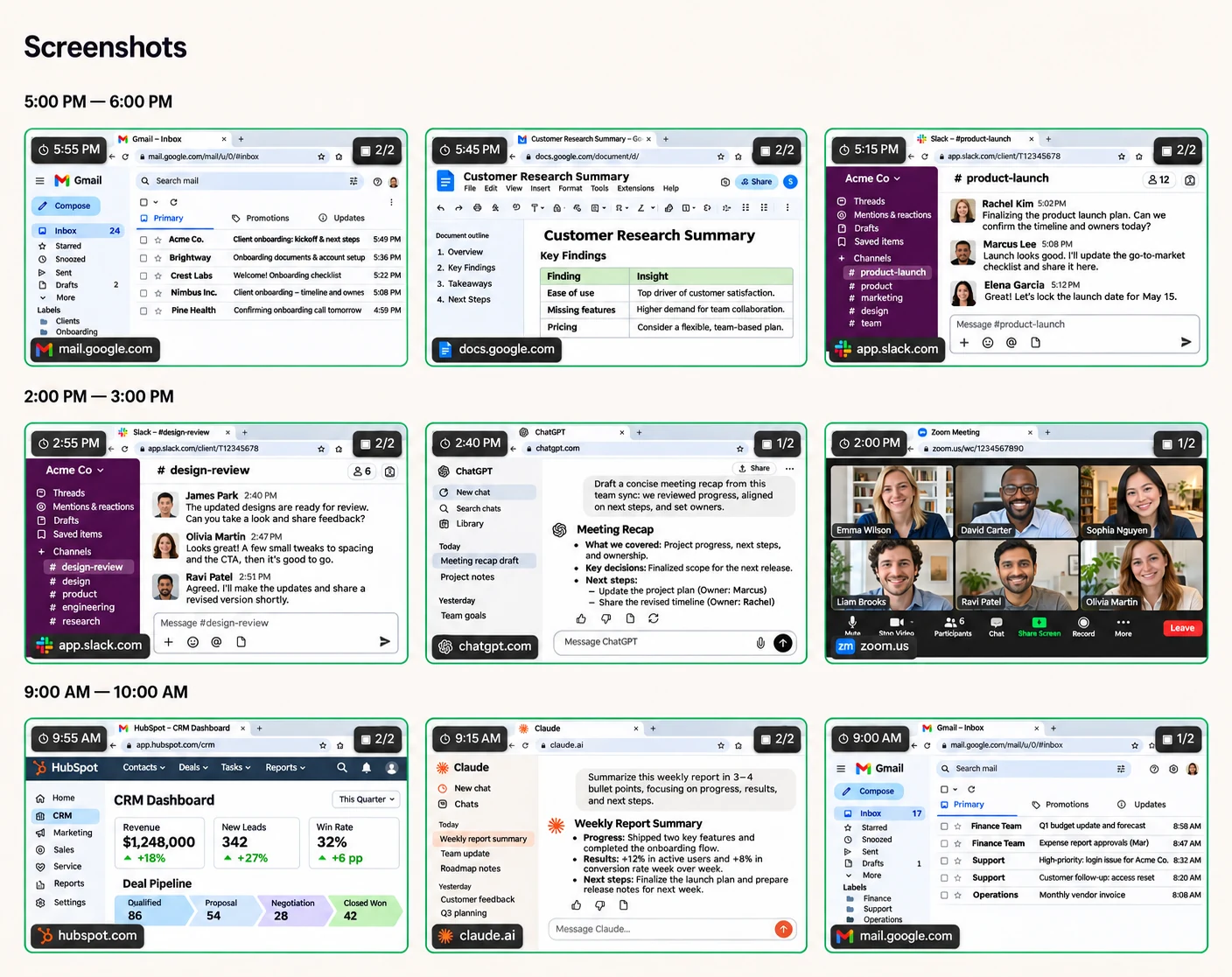
KeepActive employee monitoring software with screenshots: a workday grouped by hour, each screenshot with capture time, website, monitor and productivity colour.
Screenshot filters: date, employee and app or website.
Filter by day, employee, app or category
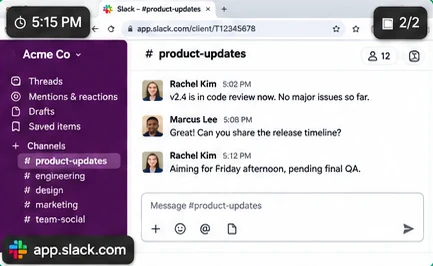
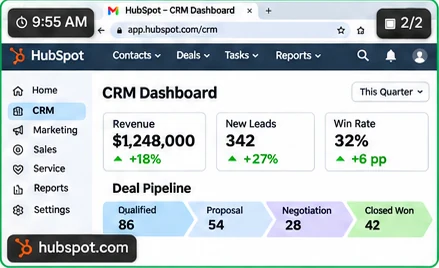
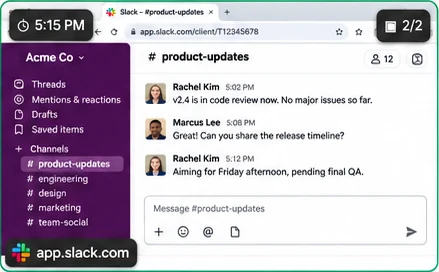
Screenshot tile: 5:15 PM, app.slack.com, monitor 2 of 2, green productive border.
Time, site and monitor on every shot

What it is

What is employee monitoring software with screenshots?

Employee monitoring software with screenshots captures images of employees' screens at regular intervals during the workday. In KeepActive, the Screenshots report shows every capture for a selected day, grouped by hour, with the exact time, the active app or website and a border coloured by its productivity rating.

Time tracking software with screenshots answers the question numbers can't: what was the work? Eight hours in a browser can be a client proposal or a social feed. One look at the day's screenshots tells you which.

It is the lightest way to add visual context to employee activity tracking. Screenshots are captured on the schedule you set, only for the employees you choose, and stored on your own server for as long as you decide.

How it looks

How screenshot monitoring looks in KeepActive

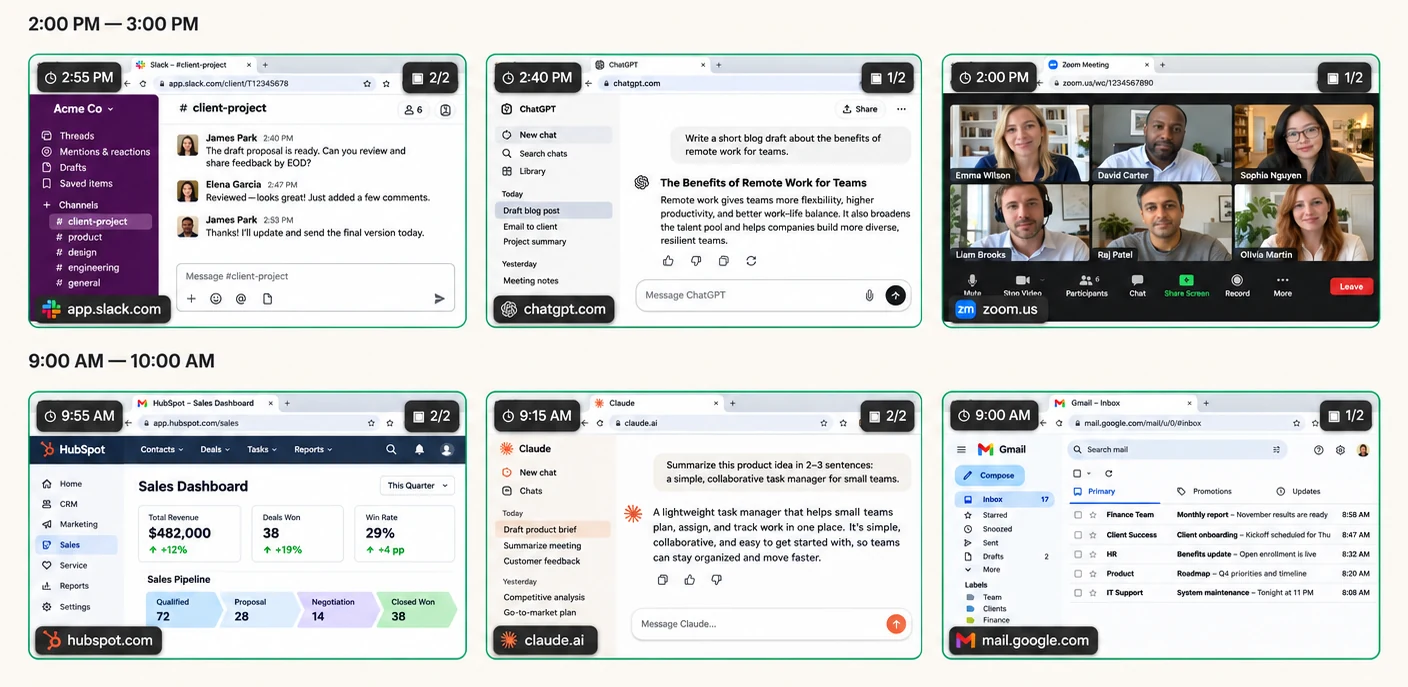
Real screens from KeepActive — from a full day at a glance to the one screenshot that matters.

KeepActive · Screenshots
Screenshots grouped into 5:00–6:00 PM, 2:00–3:00 PM and 9:00–10:00 AM.
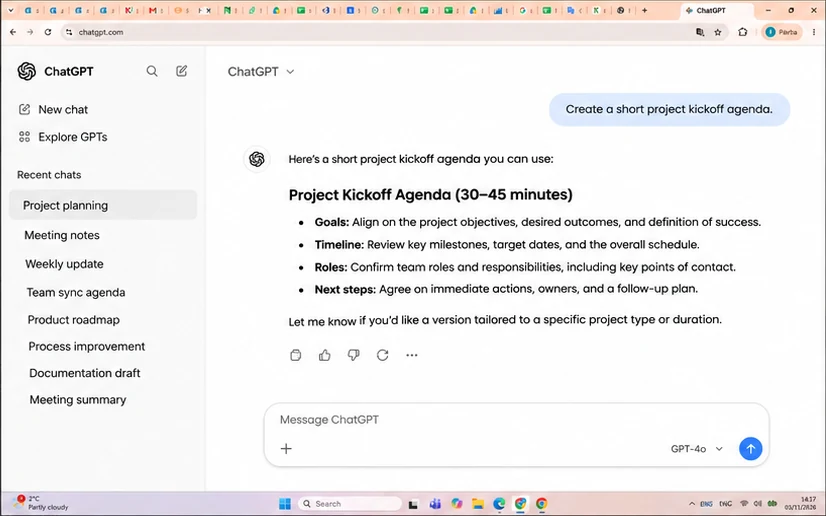
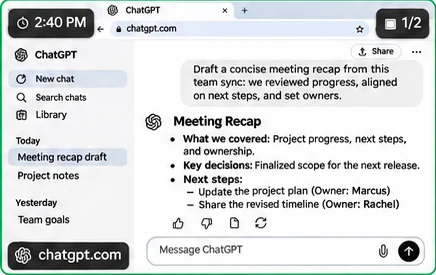
Screenshot of chatgpt.com at 2:40 PM on monitor 1 of 2.
Monitor 1/2 · 2:40 PM · chatgpt.com

The day, hour by hour

Every screenshot for the selected day, newest first and grouped by hour — so you can read an employee's day like a timeline instead of scrolling through files.

  • Exact capture time on every screenshot
  • The active app or website, right on the image
  • Border coloured by productivity rating
KeepActive · Screenshots

Any day, any employee

Pick a date in the calendar and an employee from the department tree. The report builds itself instantly — no export, no waiting.

  • One calendar day per report, with quick previous/next arrows
  • Employee search and department tree
  • Refresh in one click without losing your filters
KeepActive · Screenshots

Filter by app, website or rating

Looking for one thing? Show only the screenshots taken in a specific app or website, or only those with a given productivity rating.

  • App or website filter with search
  • Productivity category filter
  • Scheduled hours only hides everything outside work time
Full-screen screenshot of chatgpt.com. Screenshot details: date and time, employee, app or website, grade, zoom and Download screenshot.
Grade: Productive Download in one click

Every detail in one shot

Click any screenshot to open it full screen with every detail: date and time, employee, app or website and its productivity grade.

  • Zoom in to read the smallest detail
  • Arrows and a strip to move between neighbouring screenshots
  • Download any screenshot in one click

Business value

What tasks time tracking software with screenshots solves

Timesheets say how many hours were worked. Screenshots show what those hours were spent on — without watching anyone live.

  1. Get proof of work, not just hours

    Back every tracked hour with visual evidence of the task behind it — for payroll, clients and your own peace of mind.

  2. Add context to activity data

    A "productive" app on the clock is not proof of work. A screenshot shows whether it was a client deal or a side project.

  3. Catch faked activity

    Mouse jigglers and remote-desktop tricks keep activity counters busy. The same static screen, hour after hour, gives them away.

  4. Bill clients with confidence

    Show what was done for a client during billed hours, with the exact time and app on every screenshot.

  5. Manage remote teams fairly

    Employee activity tracking with screenshots works the same at home and in the office — one clear standard for everyone.

  6. Have fact-based conversations

    Replace "I think" with "here is what happened at 4:30 PM" — and settle questions quickly, often in the employee's favour.

Features

Screenshot monitoring features

Everything you need to review a day in minutes — and nothing that gets in the way.

What every screenshot shows

  • Exact date and time, employee and grade
  • The active app or website
  • Monitor identifier on multi-monitor setups
  • Border coloured by productivity rating
  • Full-screen view with zoom and previous/next
  • One-click download
Full-screen screenshot of chatgpt.com. Screenshot details: date and time, employee, app or website, grade, zoom and Download screenshot.
Scheduled hours only

Collection settings you control

  • Turn screenshots on for the company, a department or one employee
  • Choose the capture frequency (default: every 15 minutes)
  • Capture during work schedules only
  • Set the retention period (default: 3 months)
  • Inherit settings or customize them per team
  • Nothing is captured while the workstation is locked

Productivity at a glance

Each screenshot's border is coloured by the productivity rating of the active app or website, so the moments worth a closer look stand out instantly.

  • Productive
  • Neutral
  • Unproductive
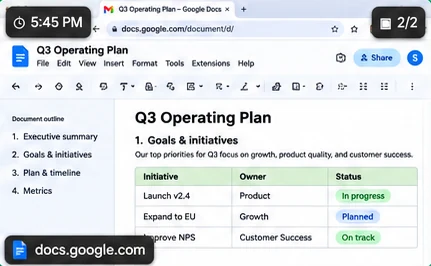
Screenshot of docs.google.com with a green border and green site label: productive.docs.google.com
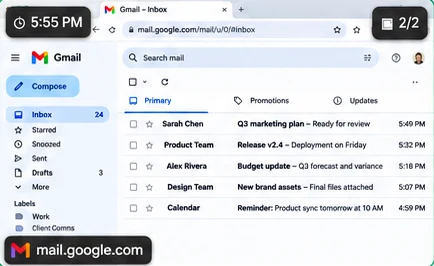
Screenshot of mail.google.com with an orange border and orange site label: neutral.mail.google.com
Screenshot of app.slack.com with a red border and red site label: unproductive.app.slack.com

Who it's for

Who uses a time tracker with screenshots

For anyone who needs to know not only how long the work took, but what the work was.

Use cases

Why visual proof matters: two client cases

Both teams looked perfectly busy in the activity reports. The screens told a different story.

Client case No. 12 Customer service · Remote team

One employee was "working" for five

  1. Situation

    Customer service staff were paid for tracked hours, and their remote-access tool was classed as productive. Activity looked strong on all five computers — yet customer complaints kept growing.

  2. What the screens revealed

    One employee connected through a remote-access chain to four colleagues' computers, imitating activity for all five while only one person was actually at work. Screenshots make this visible fast: every screen shows the same remote session instead of individual work.

Result: the scheme was uncovered by reviewing the visual record of the screens — the activity statistics alone looked perfect.

Read the full case →
Client case No. 19 Remote employee · Activity faking

A wristwatch kept the mouse "busy" all day

  1. Situation

    A remote employee placed an optical mouse on a wristwatch. The moving second hand registered as constant mouse activity, so the time tracker counted every minute as active.

  2. What the screens revealed

    Non-stop activity with no breaks is a red flag in KeepActive. Screenshots then answer the question in seconds: the same untouched screen, hour after hour.

Result: abnormal activity is flagged automatically, and the visual record shows whether anyone was really working.

Read the full case →

Getting started

Start employee activity tracking with screenshots in three steps

Two components to install, about five minutes each. Screenshots are stored on your own server and never leave your infrastructure.

  1. Server.

    Install the Server

    Collects and stores screenshots and reports inside your network — on-premises or air-gapped.

  2. Employee laptop with the Grabber.

    Install the Grabber

    A lightweight agent that captures screenshots on the computers you choose. Windows, macOS and Linux.

Screenshots & reports
Central Server web interface
Collection settings
Data Collection and Storage

Customer reviews

What customers say about KeepActive

With KeepActive’s help managers get full access to their employees’ computer screens. Once we implemented the software, the productivity of our team skyrocketed.

It’s fairly simple to use. It certainly has all the features you might ever need.

Rodrigo via G2 5 stars.

During the time we’ve been using KeepActive, our employees have been procrastinating way less and, hence, the quality of their work has improved significantly.

FAQ

FAQ about employee monitoring software with screenshots

What is employee monitoring software with screenshots?

Employee monitoring software with screenshots captures images of employees' screens at regular intervals during the workday. In KeepActive, the Screenshots report shows every capture for a selected day, grouped by hour, with the exact time, the active app or website and a border coloured by its productivity rating.

How often does KeepActive take screenshots?

As often as you decide. Capture frequency is set for the whole company, a department or a single employee; the default is one screenshot every 15 minutes.

Can I capture screenshots only during working hours?

Yes. Turn on Work schedules only in the collection settings to capture screenshots only during scheduled hours. In the report, the Scheduled hours only option hides anything taken outside them.

How long are screenshots stored, and where?

On your own KeepActive Server, inside your infrastructure. You choose the retention period; the default is 3 months.

Are screenshots taken when the computer is locked?

No. Screenshots are not collected while the workstation is locked, and only for employees with screenshot collection turned on.

What if an employee works on two or more monitors?

Each screenshot shows a monitor identifier, for example 2/2, so you always know which display it came from.

Can I take a screenshot on demand?

Yes. Capture an instant screenshot of any online employee from Live Monitoring, or have a screenshot attached automatically to the manager's email when an event is triggered.

Who can view employee screenshots?

Super admins and admins see screenshots for the whole company. Managers see only the employees within the visibility scope of their account.

Which KeepActive plans include screenshots?

Screenshots are included in the Time Tracking (TT) and Employee Monitoring (EM) licenses. If you prefer time tracking without screenshots, a Time Tracking option without screenshot capture is available too.

Is employee monitoring with screenshots legal?

Rules depend on the country. Common good practice is to inform employees, document the purpose in a policy, monitor work computers only and limit access to authorized managers. See our legal opinion and GDPR notes.

How fast can I start, and is there a free trial?

Installation takes a few minutes per component. Start a free trial of up to 14 days with no credit card and review your team's first screenshots the same day.

Try time tracking with screenshots on your own team

Set up in minutes and review your team's first screenshots today. Free trial, no credit card required.