

🔥 Black Friday: 30% off every plan & period! Grab it →

Activity History

Activity History

See your whole team's workday on one screen — and any minute of it in detail.

An employee activity timeline by date, coloured by productivity, idle and offline time. Drill down to every app, website and window title, with day details for each person.

No credit card required · Windows, macOS, Linux

  • 5,000+ organizations
  • 60+ countries
  • 6 interface languages
KeepActive · Activity History
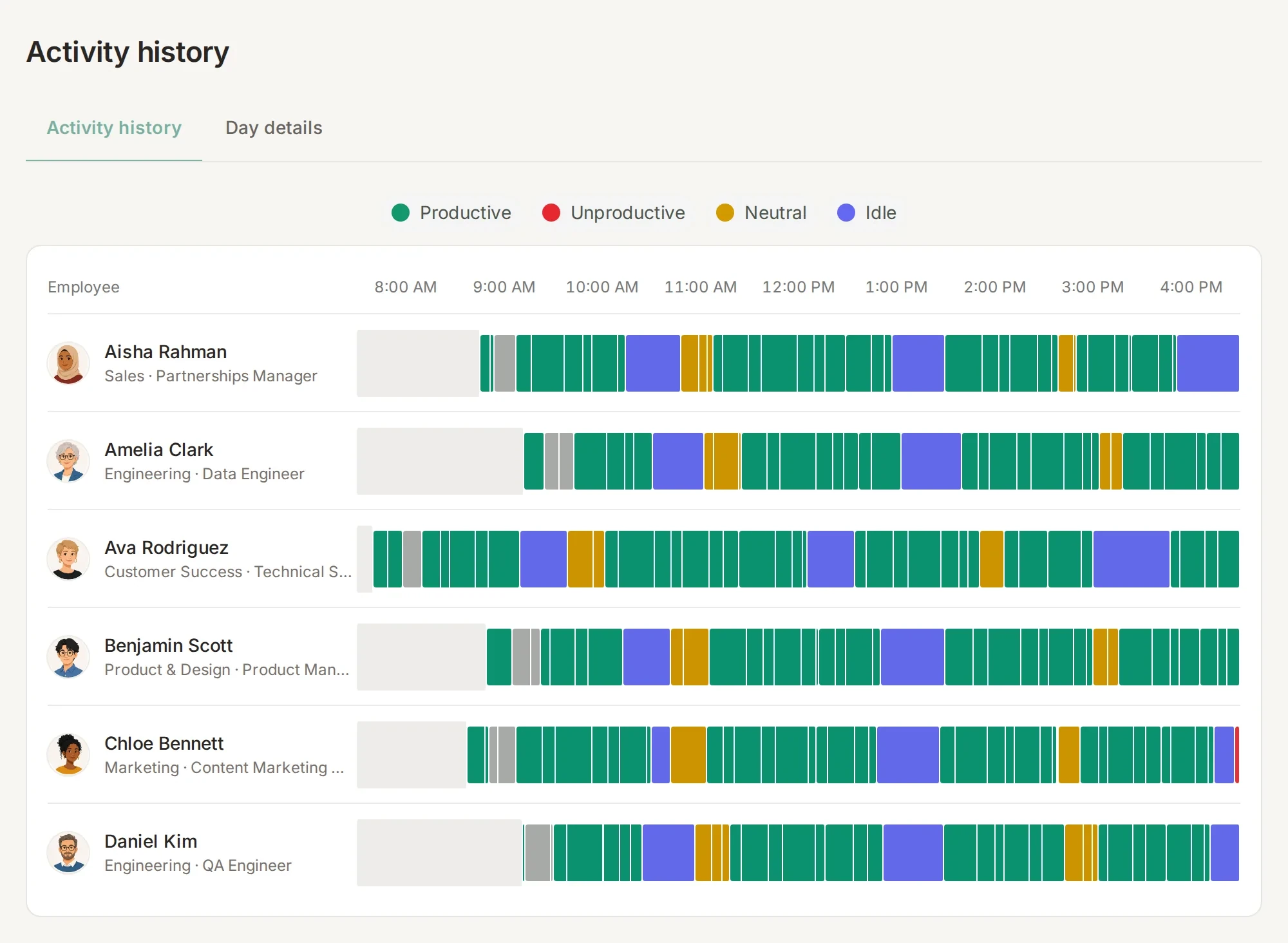
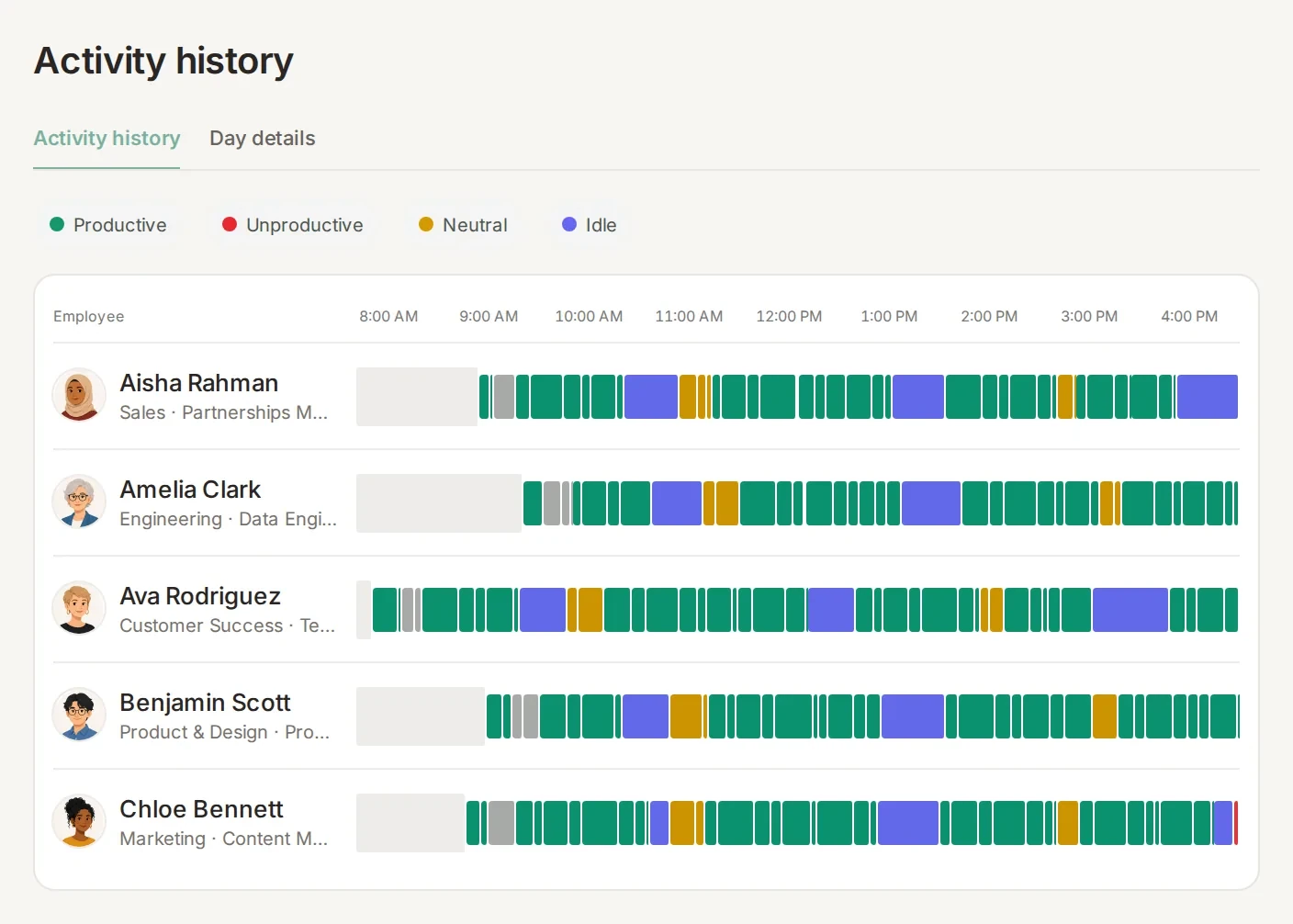
KeepActive employee activity timeline for six employees from 8 AM to 4 PM, coloured by productive, unproductive, idle and offline activity.
Time at work 10:26:02, first activity 08:10:00, last activity 18:36:02.
Time at work and first / last activity
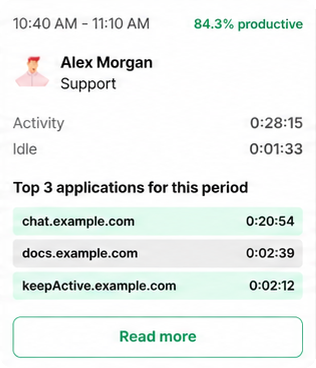
10:40–11:10 AM, 84.3% productive: activity, idle time and top 3 applications.
Top 3 apps on hover

What it is

What is employee activity history software?

Employee activity history software records what employees do on their work computers and lets managers review any day afterwards. In KeepActive, the Activity history report shows a colour-coded employee activity timeline for the whole team, drills down to every app, website and window title, and adds day details: time at work, first and last activity and a productivity breakdown.

Summary reports tell you how many hours were productive. Activity history answers the next question — when, in what order and in which tools. It is the fastest way to see employee computer activity by day, whether you are checking a missed deadline, a payroll question or a new hire's first week.

Use it as employee work history tracking software for one person or a daily overview for the whole team. Together with time tracking, it turns KeepActive into time tracking software with daily activity reports — no manual timesheets or status updates required.

How it looks

How the employee activity timeline looks in KeepActive

Real screens from KeepActive — from the whole team's day down to a single window title.

KeepActive · Activity history
Team activity timeline: each employee's workday from 8 AM to 4 PM in productive, unproductive, idle and offline colours.
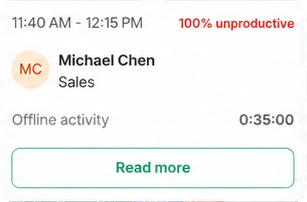
Tooltip: 11:40 AM–12:15 PM, offline activity 0:35:00.

The whole team's day on one timeline

Every employee is a row; every 5 minutes is a block coloured by what filled most of it — productive, unproductive, neutral, idle, unrated or offline activity. Hover for activity, idle time and the top 3 apps; zoom in on any stretch of the day.

  • Legend filters for each activity type
  • Zoom in, zoom out and reset
  • Offline activity shown in context
KeepActive · Calendar view
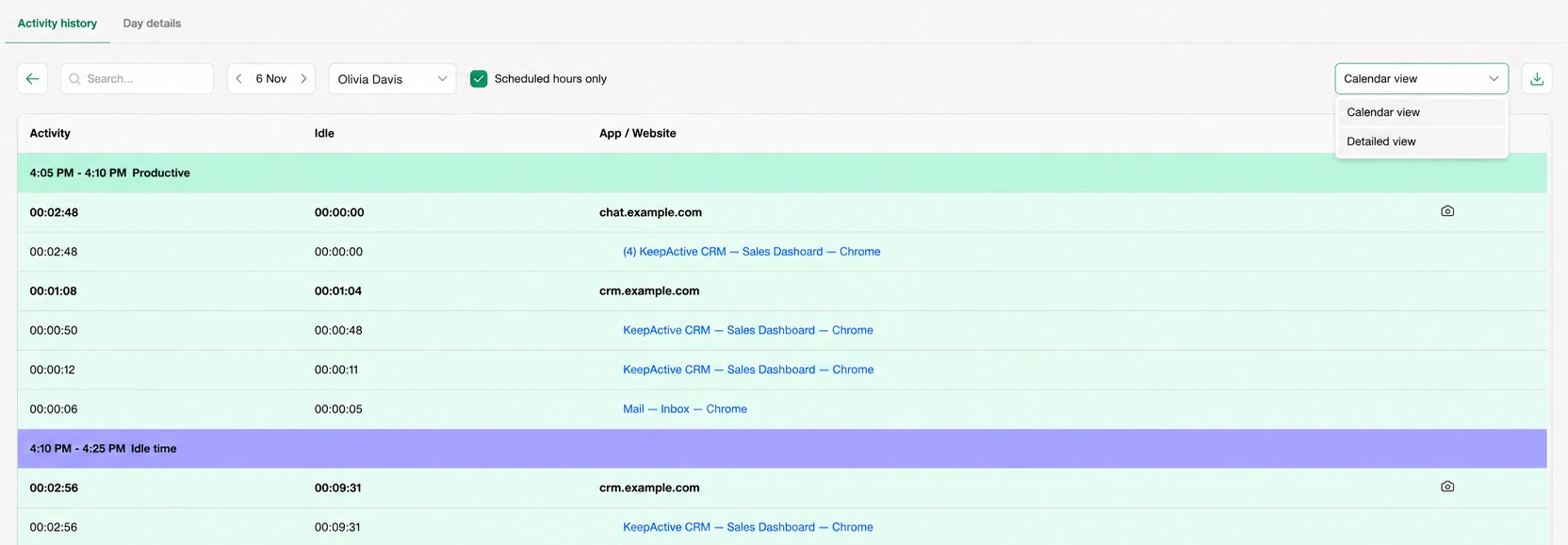
Calendar view: 5-minute periods with apps, websites, window titles, activity and idle time.
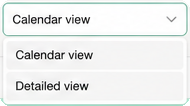
View menu: Calendar view, Detailed view.

Calendar view: what was used, period by period

Click Read more on any block to open that employee's day as a list of 5-minute periods. Each one shows the apps, websites and window titles used, with activity and idle time, coloured by productivity.

  • Apps and websites with window titles
  • Activity and idle time per item
  • Screenshot icon opens that moment
KeepActive · Detailed view
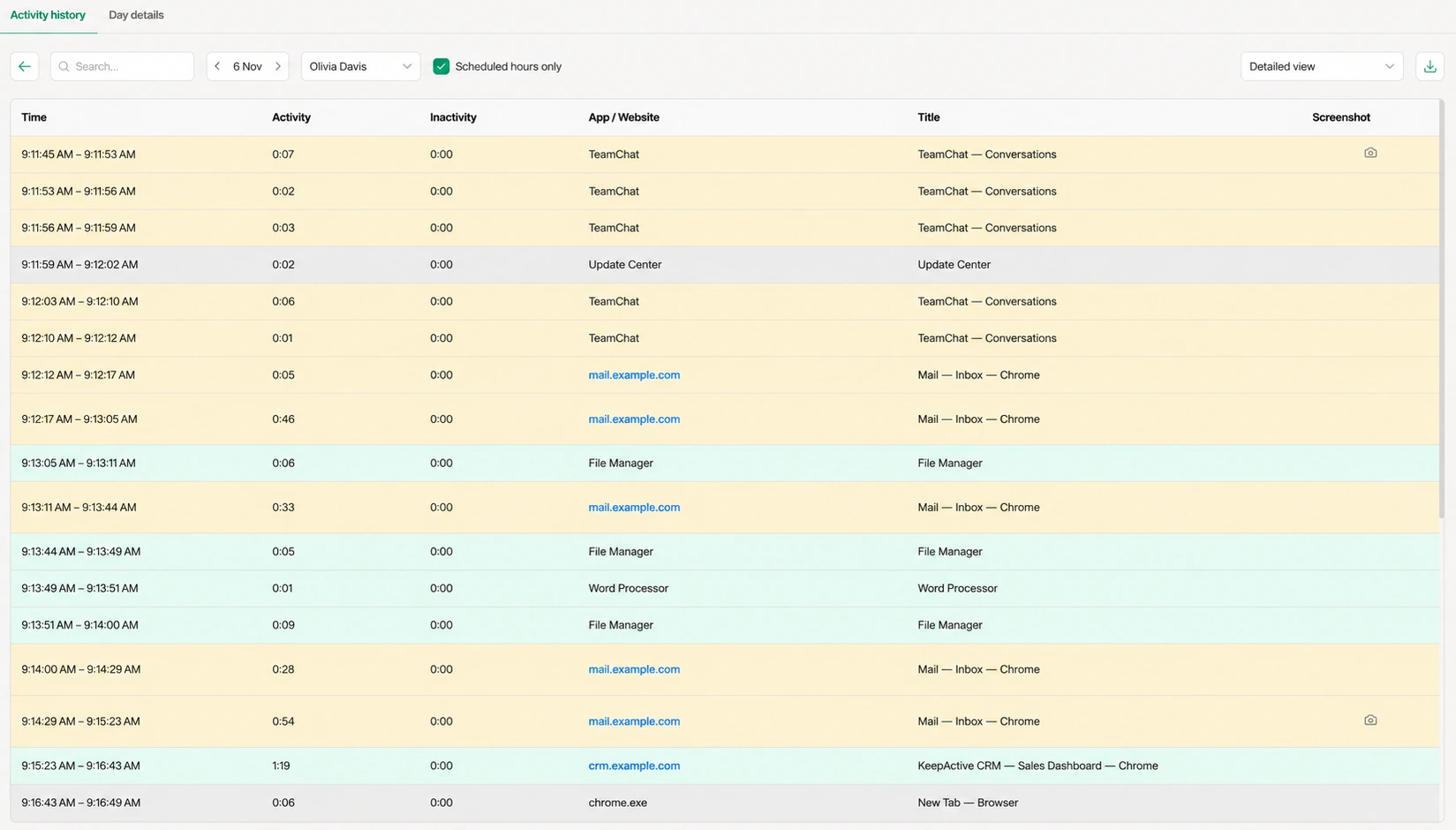
Detailed view: every switch with start and end time, activity, inactivity, app or website and window title.

Detailed view: every switch, nothing grouped

The complete employee activity history by day without aggregation — each switch with its exact time range, activity, inactivity, app or website and window title. Search it and export it.

  • Time ranges to the second
  • Search by app, site or title
  • Export in the format you choose
KeepActive · Day details
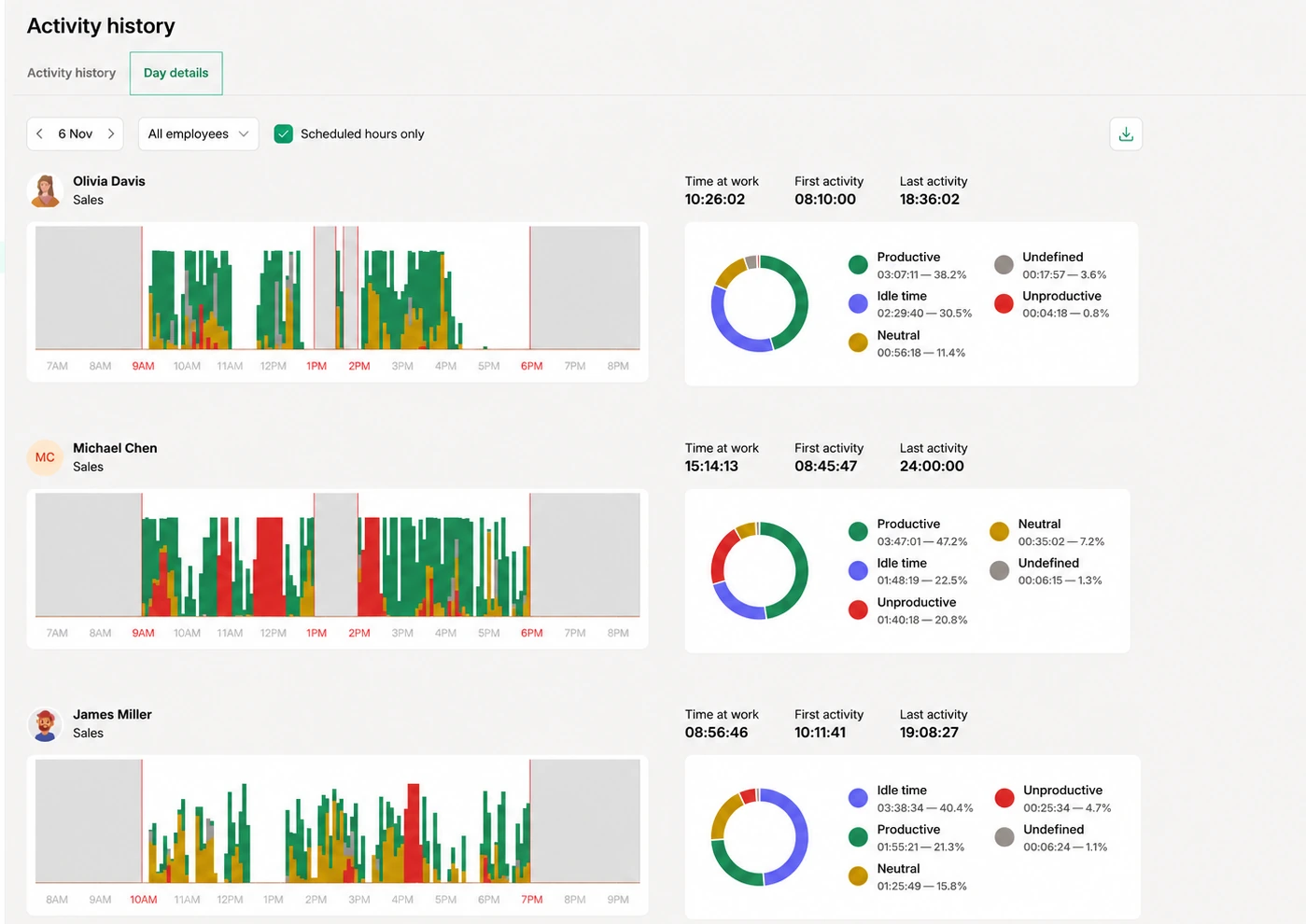
Day details: time at work, first and last activity, hourly activity chart and productivity breakdown.
Time at work 10:26:02, first activity 08:10:00, last activity 18:36:02.
Time at work, first and last activity

Day details for every employee

One card per person: time at work, first and last activity, an hour-by-hour chart and a breakdown of productive, idle, neutral, unproductive and undefined time. Work schedule start, end and breaks are marked in red.

  • Time at work and first / last activity
  • Share of each activity type
  • Work schedule and breaks on the chart

Business value

What tasks employee activity monitoring by day solves

Totals hide the story of the day. A timeline shows when focus broke, where time went and what really happened — without asking anyone to fill in a timesheet.

  1. Find out what happened

    A missed call, a late report, a complaint — open that day and see exactly what the employee was doing.

  2. Plan the day better

    See when people actually start, peak and fade, and move meetings and routine work accordingly.

  3. Settle disputes with facts

    Questions about hours, overtime or absences are answered by the employee activity report, not by memory.

  4. Balance the team's load

    Compare rows side by side to spot who is overloaded, who has gaps and where idle time piles up.

  5. Onboard and coach

    Review a new hire's first days and show them how experienced colleagues organize their work.

  6. Keep remote work transparent

    View employee activity for the day for remote and office staff in the same way — no check-in calls needed.

Features

Employee activity monitoring software features

Employee activity monitoring software that shows, explains and exports any working day — an employee activity timeline by date for the team and a full history for each person.

What the report shows

  • Team activity timeline for any date
  • 5-minute blocks by productivity and idle
  • Offline activity on the same timeline
  • Top 3 apps for any period on hover
  • Apps, websites and window titles
  • Time at work, first and last activity
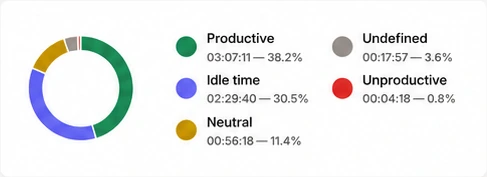
Day breakdown: productive 38.2%, idle 30.5%, neutral 11.4%, undefined 3.6%, unproductive 0.8%.
Legend filters: Productive, Unproductive, Neutral, Idle, Without rating.

Settings and filters

  • Any calendar day, switch with arrows
  • All employees, a department or one person
  • Scheduled hours only
  • Show or hide each activity type
  • Zoom in, zoom out and reset
  • Export · role-based access

Three views of one day

Start with the team timeline, open the calendar view for 5-minute periods with apps and titles, or switch to the detailed view for every switch to the second. The screenshot icon jumps to screenshots for the same moment.

Calendar view and Detailed view.

Who it's for

Who uses employee activity history software

For anyone who needs to understand a working day — not just its total.

Use cases

Employee activity history in practice: two client cases

What changed when managers could see the day minute by minute — not just the totals.

Client case No. 18 Online store · Remote sales team

Order cancellations fell from 30% to 22% in one week

  1. Situation

    An online store moved its sales managers to remote work. Orders grew, but so did cancellations — around 30%. Customers who weren't called back went to competitors.

  2. How the daily picture helped

    The owner saw when managers were actually working and arranged lunch breaks so that someone was always available to call customers back.

Result: the cancellation rate dropped to 22% after just one week, even as orders grew.

Read the full case →
Client case Software development · 11 developers

Constant switching cost a dev team 20% of its time

  1. Situation

    After cutting the team from 20+ to 11 developers, a software company saw productivity fall further than headcount alone explained.

  2. What the activity history showed

    The workday was broken up by social media, messengers and professional communities. Each switch took 15–20 minutes to recover from — about 20% of every specialist's day.

Result: non-work sites and apps were limited to breaks, and productivity rose 12% in the first week.

Read the full case →

Getting started

Start tracking employee activity history in three steps

Two components to install, about five minutes each. Activity data stays on your own server and never leaves your infrastructure.

  1. Server.

    Install the Server

    Collects and stores activity history and reports inside your network — on-premises or air-gapped.

  2. Employee laptop with the Grabber.

    Install the Grabber

    A lightweight agent that records app, website and idle activity automatically. Windows, macOS and Linux.

Activity history & reports
Central Server web interface
Collection settings
Data Collection and Storage

Customer reviews

What customers say about KeepActive

With KeepActive’s help managers get full access to their employees’ computer screens. Once we implemented the software, the productivity of our team skyrocketed.

It’s fairly simple to use. It certainly has all the features you might ever need.

Rodrigo via G2 5 stars.

During the time we’ve been using KeepActive, our employees have been procrastinating way less and, hence, the quality of their work has improved significantly.

FAQ

FAQ about employee activity history

How do I view employee activity for the day?

Open Activity history, pick a date and employees, and the report builds automatically. Each row is that employee's activity history by day on a colour-coded timeline, so you see everyone at once.

What do the colours on the employee activity timeline mean?

The timeline is split into 5-minute blocks. Each block takes the colour of what filled most of it: productive, unproductive, neutral, idle, without rating or offline activity. Use the legend to show or hide each type.

What is the difference between the calendar view and the detailed view?

The calendar view groups the day into 5-minute periods and lists the apps, websites and window titles used in each. The detailed view shows the complete history without grouping — every switch with its exact time range.

What does the Day details tab show?

For each employee: time at work, first and last activity, an hour-by-hour activity chart and a breakdown of productive, unproductive, neutral, undefined and idle time. With Scheduled hours only, the work schedule start, end and breaks are marked on the chart.

Can I see screenshots from the activity history?

Yes. In the calendar and detailed views, the screenshot icon opens the Screenshots section for the same employee and settings, so you can see what was on the screen at that moment.

Can I export an employee activity report?

Yes. Export the calendar view, the detailed view or day details in the format you choose — for payroll questions, performance reviews or an internal investigation.

Does activity history include offline work?

Yes. Offline activity, such as meetings or calls away from the computer, appears on the timeline as its own block, so the day's picture is complete.

How far back can I see employee work history?

The report covers one calendar day at a time; switch dates with the arrows to browse the employee's work history day by day for as long as your data retention settings keep it.

Who can see activity history?

Super admins and admins see all employees. Managers see only employees within the visibility scope of their account.

Is it legal to track employee activity history?

Rules depend on the country. Common good practice is to inform employees, document the purpose in a policy, monitor work computers only and limit access to authorized managers. See our legal opinion and GDPR notes.

See your team's activity history today

Set up in minutes and open your team's first activity timeline today. Free trial, no credit card required.